# Free AI Flowchart Maker & Generator: 15 Best Tools Compared (2026)
> The best free AI flowchart generators in 2026, compared: Whimsical, Mermaid, Lucidchart, Napkin AI, draw.io and Taskade Genesis. Prices checked November 2026.
- Source: https://www.taskade.com/blog/ai-flowchart-makers
- Published: 2026-04-11
- Updated: 2026-11-12
- Author: Taskade Team
> **TL;DR:**
> The best free AI flowchart generator in 2026 depends on what happens after the diagram. Taskade Genesis turns a text prompt into a flowchart that becomes a live project with tasks, AI agents, and automations: Free includes 3 apps and 1 agent, and Pro is $10/mo billed yearly. Whimsical AI leads on speed, Mermaid on diagrams-as-code, Lucidchart on enterprise, and draw.io on free-forever editing. [Try Taskade's free AI Flowchart Generator →](https://www.taskade.com/generate/ai/flowchart)
**Short on time?** Jump straight to the [free AI Flowchart Generator](https://www.taskade.com/generate/ai/flowchart): prompt to diagram in about 60 seconds, free, with no signup or login. Want a living project instead of a flat PNG? Start a workspace at [taskade.com/create](https://www.taskade.com/create) and the same prompt becomes a flowchart, task list, and mind map at once, plus a Gantt chart on paid plans.
*Facts checked on 2026-11-07: every free plan and price below was re-read on the vendor's own pricing page on November 7, 2026, or is marked where the page blocked us. Changes since the October update: Mermaid moved to mermaid.ai with new Plus and Premium plans, Eraser dropped its Starter plan for new teams, draw.io now ships a native AI Generate tool, and zenflowchart.com redirected to Google on November 7, 2026, so Zen Flowchart left the ranking. Napkin AI, FigJam AI, and ChatGPT or Claude with Mermaid joined it. The Lucidchart and EdrawMax prices, and the export and free-tier cells for Napkin AI, FigJam AI, ChartGen.ai, Jeda.ai, Venngage AI, and ChatDiagram, were re-checked on 2026-11-12. The three-prompt run behind the scores dates from July 2026. This refresh re-checked plans and product pages and did not re-run the prompts.*
> **One thing no other guide on this SERP can do:** every diagram on this page is a real, live-rendered Mermaid flowchart, not a screenshot. Copy any example straight into GitHub, mermaid.live, or any Mermaid-aware editor and it renders.
## Quick Answer: The Best Free AI Flowchart Generator in 2026
Taskade's free AI Flowchart Generator is the best free AI flowchart generator from text when the process must run after you draw it. Whimsical AI is the fastest polished picture, Mermaid is the best diagrams-as-code option, draw.io is the best free-forever editor, and Napkin AI is the best free text-to-visual tool for docs and decks.
| If you need… | Best free pick | Free plan (checked 2026-11-07) | Paid from |
| --- | --- | --- | --- |
| A flowchart that becomes a working project | **Taskade Genesis** | 3 apps, 1 agent, 10 automation runs. Starts at 0 AI credits | Pro $10/mo billed yearly |
| The fastest polished flowchart | **Whimsical AI** | Unlimited boards, 50 board objects a month, 10 AI credits per member | Pro $10/editor/mo billed yearly |
| A flowchart as code for Git | **Mermaid** | 3 diagrams, 15 AI credits | Plus $10/user/mo billed yearly |
| A free-forever editor with AI | **draw.io** | Free, with the Generate tool in the web app | Free |
| Diagrams from meeting notes or a doc | **Napkin AI** | 500 AI credits a week | Plus $9/person/mo |
| Engineering and cloud diagrams | **Eraser AI** | 3 files, 3 AI credits | Business $45/member/mo billed yearly |
| A team whiteboard | **Miro AI** or **FigJam AI** | Miro: 3 editable boards, 10 AI credits a month | Miro Starter $8/member/mo billed yearly |
Searching for the best flowchart maker, a flow chart AI that is free, or the best AI diagram generator free of charge? The picks above cover all three. If you need an AI flowchart generator free without login, Taskade's generator and Eraser's generator both return a diagram before you create an account. If you want an AI workflow generator that runs the steps instead of drawing them, that is Taskade Genesis.
On Free, you earn free AI credits with referrals and invites, and you can upgrade any time. The full 15-tool free plan table is in the [free tier comparison](#free-ai-flowchart-generator-every-free-tier-compared) below.
## AI Flowchart Generator: Make a Flowchart From Text in 60 Seconds
An AI flowchart maker turns a plain-English description of a process into an editable diagram with nodes, arrows, and labels in seconds. The fastest free option is Taskade's [AI Flowchart Generator](https://www.taskade.com/generate/ai/flowchart): type a prompt, get a diagram in about 60 seconds, no signup required. Below we compare 15 AI flowchart generators for 2026, with every free plan checked on 2026-11-07 and some re-checked on 2026-11-12, as marked below.
If you searched for a flowchart maker AI with a genuinely free tier, here is the direct answer: [Taskade](https://www.taskade.com/)'s Free plan includes 3 Taskade Genesis apps, 1 AI agent, 10 automation runs a month, and multiple project views. On Free, you earn free AI credits with referrals and invites, and you can upgrade any time. Every other tool in this guide also has a free tier; the [free tier comparison](#free-ai-flowchart-generator-every-free-tier-compared) below shows exactly where each one caps you.
## Static Diagram vs Living Workflow: The 2026 Category Shift
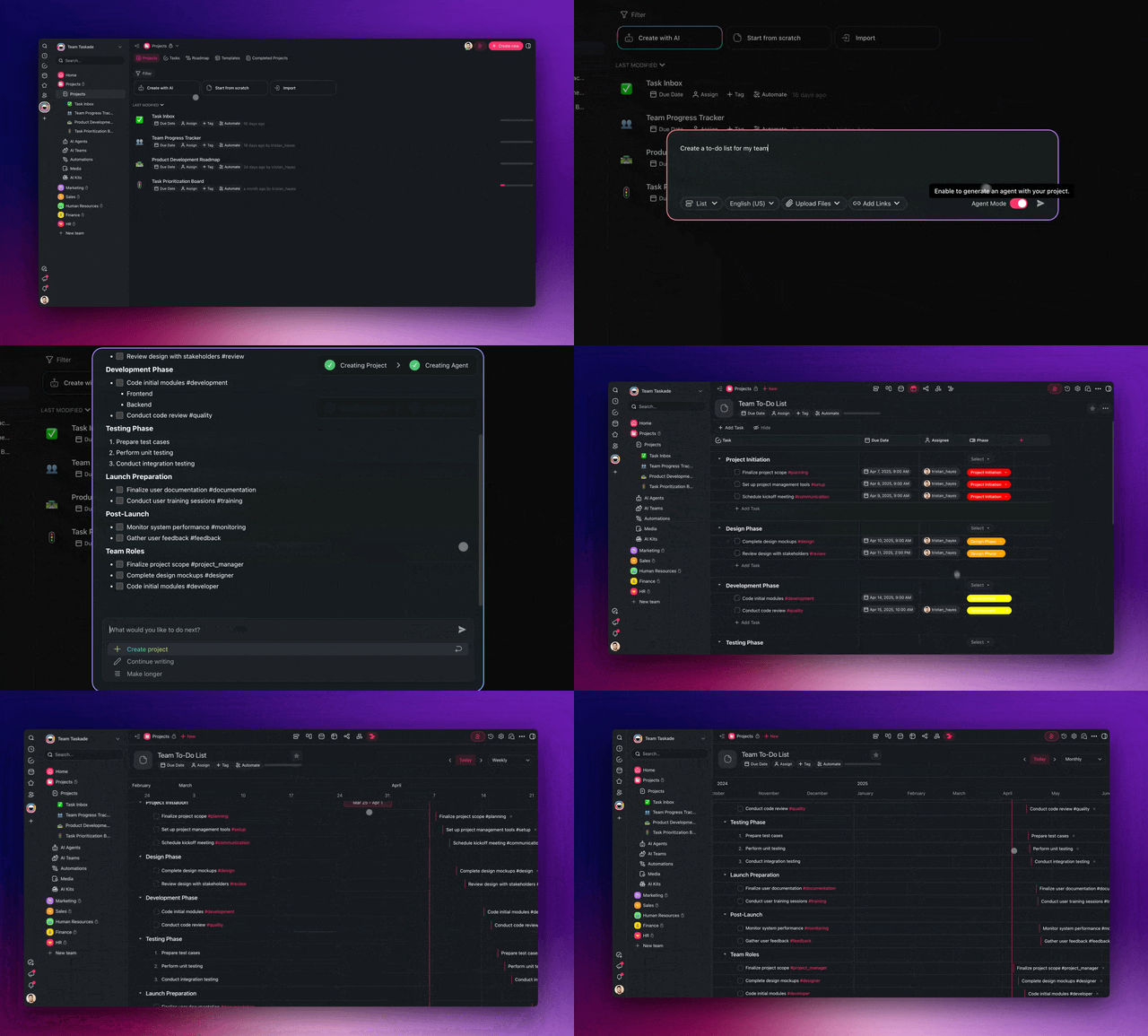
The biggest change in AI flowchart tools is not better pictures: it is that the best flowchart can now *run*. Fourteen of the fifteen tools in this guide output a static artifact: a diagram you look at, export, and watch drift out of date the moment your process changes. Taskade Genesis outputs a living workflow instead: every node is an assignable task, every branch can fire an automation, and any step can be handed to an AI agent that monitors and executes it.
This shift mirrors a broader market move. McKinsey's State of AI survey (November 2025) found that **62% of organizations are experimenting with or scaling AI agents, and 23% are already scaling agentic AI in at least one business function** ([McKinsey, 2025](https://www.mckinsey.com/capabilities/quantumblack/our-insights/the-state-of-ai)). The category is shifting from "draw the flow" to "run the flow." Here is the contrast in one diagram.
```mermaid
graph LR
P["Plain-English prompt
'SaaS onboarding flow'"] --> S["Static tool
(Lucidchart, Miro, Whimsical)"]
P --> T["Taskade Genesis"]
S --> IMG["Picture you look at
(PNG / SVG)"]
IMG --> STALE["Goes stale when
the process changes"]
T --> LIVE["Live workflow
you can run"]
LIVE --> N["Nodes = assignable tasks"]
LIVE --> B["Branches = automations"]
LIVE --> AG["AI agent executes steps"]
N --> MEM["Feeds Workspace Memory back"]
B --> MEM
AG --> MEM
style P fill:#1e1e2e,color:#cdd6f4,stroke:#475569,stroke-width:1.5px
style S fill:#1e1e2e,color:#94a3b8,stroke:#475569
style IMG fill:#1e1e2e,color:#94a3b8,stroke:#475569
style STALE fill:#1a0d0d,color:#ef9a9a,stroke:#b71c1c,stroke-width:1.5px
style T fill:#2a1225,color:#ff8fa3,stroke:#ff2d60,stroke-width:2px
style LIVE fill:#2a1225,color:#ff8fa3,stroke:#ff2d60,stroke-width:2px
style N fill:#0d1b2a,color:#7dd3fc,stroke:#38bdf8,stroke-width:1.5px
style B fill:#0d1a0e,color:#86efac,stroke:#22c55e,stroke-width:1.5px
style AG fill:#1a0d24,color:#ce93d8,stroke:#6a1b9a,stroke-width:1.5px
style MEM fill:#11111b,color:#cdd6f4,stroke:#00d4aa,stroke-width:1.5px
```
The rest of this guide reviews all 15 tools fairly: Whimsical AI for speed, Mermaid Chart for diagrams-as-code, Lucidchart AI for enterprise. But keep this framing in mind: if your flowchart only needs to be looked at, almost any tool here works. If it needs to *do* something, that is a smaller list. Other tools hand you a diagram. Taskade hands you a workflow that runs.
## What Is an AI Flowchart Maker?
An AI flowchart maker is a tool that converts a natural-language description of a process into a structured diagram with nodes, arrows, and labels. Instead of dragging shapes onto a canvas, you type something like "customer onboarding for a SaaS trial with email verification, activation, and upgrade checkpoints" and the AI returns a flowchart you can edit, recolor, and export. The best tools of 2026 go further — they turn the diagram into a collaborative project with assignees, due dates, and AI agents that can execute the steps.
| Fact | Detail |
|---|---|
| What it does | Text prompt in, editable diagram out |
| Typical generation time | 5–60 seconds |
| Tools compared in this guide | 15 (12 scored in the July 2026 prompt run, 3 added in November 2026) |
| Free options | All 15 have a free plan. Taskade Free starts with 0 AI credits: earn free AI credits with referrals and invites |
| Output types | Static image (14 tools) or living workflow (Taskade Genesis) |
| Best free start | [AI Flowchart Generator](https://www.taskade.com/generate/ai/flowchart) — no signup |
### How Does AI Flowchart Generation Work?
Under the hood, every AI flowchart tool does roughly the same three steps. First, a large language model parses the prompt and extracts entities — "customer," "email," "upgrade" — and relationships. Second, it produces an intermediate representation such as a JSON graph or a Mermaid script. Third, the rendering layer lays the graph out using a graph algorithm (Dagre, ELK, Graphviz) and draws it on a canvas.
The differences between tools come from the quality of the LLM, the strength of the layout engine, and whether the diagram is a static picture or a live document you can keep editing.
### Who Needs an AI Flowchart Maker?
Product managers mapping user journeys. Engineers sketching system designs. Founders outlining sales funnels. Teachers explaining concepts. Operations leads documenting SOPs. Anyone who has ever stared at a blank Figma canvas and wished the shapes would draw themselves. If you've ever typed a process into a Google Doc as a bullet list and thought "I should turn this into a diagram," an AI flowchart maker is the 60-second version of that job.
## How We Compared (Methodology)
In July 2026 our team ran three identical prompts through 12 of these tools and scored each on a transparent weighted rubric so the rankings are reproducible. The November 7, 2026 refresh re-checked every plan page and product page (the Lucidchart and EdrawMax prices, and the free-tier and export cells for Napkin AI, FigJam AI, ChartGen.ai, Jeda.ai, Venngage AI, and ChatDiagram, were re-checked again on November 12, 2026), and scored Napkin AI, FigJam AI, and ChatGPT or Claude from their documentation, not from a prompt run. The exact prompt from the July run:
```text
TEST PROMPT (identical for every tool in the July 2026 run)
─────────────────────────────────────────
"Customer onboarding flow for a SaaS trial.
User signs up, verifies email, creates first
project, invites a teammate, and converts to
paid within 14 days. Include a re-engagement
branch for stalled users."
```
The three scenarios were (1) the 7-step SaaS onboarding flow above, (2) a system-design diagram for a rate-limited public API, and (3) a decision tree for triaging support tickets. Our weighted scoring rubric:
| Dimension | Weight | What we measured |
|---|---|---|
| AI accuracy | 30% | Did the diagram match the prompt without manual fixes? |
| Editability | 20% | How easy to rename, reroute, and recolor nodes after generation? |
| Collaboration | 15% | Real-time multiplayer, comments, sharing |
| Automation / agents | 20% | Can nodes become tasks, fire automations, or run an AI agent? |
| Integrations & export | 15% | Export formats and connected tools |
Scores are out of 5. The "Automation / agents" weight is why Taskade Genesis ranks first — it is the only tool where the diagram becomes something the rest are not built to do.
## The 15 Best AI Flowchart Makers
We scored every tool in this list on generation speed, layout quality, editability, collaboration, export formats, pricing, and whether the diagram could become something more than a picture.
Before the individual reviews, here is the whole 2026 landscape in one map. Four families cover every tool in this guide, and knowing which family you are shopping in cuts the list from fifteen to three.
```mermaid
graph TD
Q["Which AI flowchart
family fits your job?"] --> LW
Q --> DC
Q --> VC
Q --> QF
subgraph LW["Living workflow"]
T["Taskade Genesis
diagram = running project"]
end
subgraph DC["Diagrams-as-code"]
MC["Mermaid Chart"]
ER["Eraser AI"]
EX["Excalidraw"]
CG["ChatGPT / Claude
+ Mermaid"]
end
subgraph VC["Visual canvas"]
WH["Whimsical AI"]
LU["Lucidchart AI"]
MI["Miro AI"]
ED["EdrawMax AI"]
CR["Creately AI"]
FJ["FigJam AI"]
end
subgraph QF["Quick and free"]
VI["Visme AI"]
VS["Visily"]
NA["Napkin AI"]
DN["Diagrams.net"]
end
style Q fill:#1e1e2e,color:#cdd6f4,stroke:#475569,stroke-width:1.5px
style T fill:#2a1225,color:#ff8fa3,stroke:#ff2d60,stroke-width:2px
style MC fill:#0d1b2a,color:#7dd3fc,stroke:#38bdf8,stroke-width:1.5px
style ER fill:#0d1b2a,color:#7dd3fc,stroke:#38bdf8,stroke-width:1.5px
style EX fill:#0d1b2a,color:#7dd3fc,stroke:#38bdf8,stroke-width:1.5px
style WH fill:#1a0d24,color:#ce93d8,stroke:#6a1b9a,stroke-width:1.5px
style LU fill:#1a0d24,color:#ce93d8,stroke:#6a1b9a,stroke-width:1.5px
style MI fill:#1a0d24,color:#ce93d8,stroke:#6a1b9a,stroke-width:1.5px
style ED fill:#1a0d24,color:#ce93d8,stroke:#6a1b9a,stroke-width:1.5px
style CR fill:#1a0d24,color:#ce93d8,stroke:#6a1b9a,stroke-width:1.5px
style VI fill:#0d1a0e,color:#86efac,stroke:#22c55e,stroke-width:1.5px
style VS fill:#0d1a0e,color:#86efac,stroke:#22c55e,stroke-width:1.5px
style NA fill:#0d1a0e,color:#86efac,stroke:#22c55e,stroke-width:1.5px
style CG fill:#0d1b2a,color:#7dd3fc,stroke:#38bdf8,stroke-width:1.5px
style FJ fill:#1a0d24,color:#ce93d8,stroke:#6a1b9a,stroke-width:1.5px
style DN fill:#0d1a0e,color:#86efac,stroke:#22c55e,stroke-width:1.5px
style LW fill:#0a1a14,stroke:#1b3d2a
style DC fill:#0a1420,stroke:#1a2a45
style VC fill:#1a140a,stroke:#3a2a1a
style QF fill:#0a1a14,stroke:#1b3d2a
```
One family runs the flow, one reviews the flow in Git, one draws the flow beautifully, and one gets you a picture in under a minute for free. Now the reviews.
### 1. Taskade Genesis: Best for Living Projects
[Taskade Genesis](https://www.taskade.com/create) is the only tool in this guide that treats a flowchart as the start of a project rather than the end of a task. You describe a process in plain language, Taskade Genesis generates the diagram in about 60 seconds, and the same diagram is immediately available in multiple views: List, Board, Calendar, Table, Mind Map, Gantt, and Org Chart (Gantt and Org Chart on paid plans). The Mind Map view is the native flowchart canvas. Add a due date to a node and it becomes a Gantt bar. Assign a person and it becomes a Kanban card. Connect an AI agent and the node becomes a task the agent can actually execute.
**What's in the box:**
- Prompt-to-diagram generation powered by frontier models from top AI labs
- Multiple project views including Mind Map, Gantt, and Org Chart (Gantt and Org Chart on paid plans)
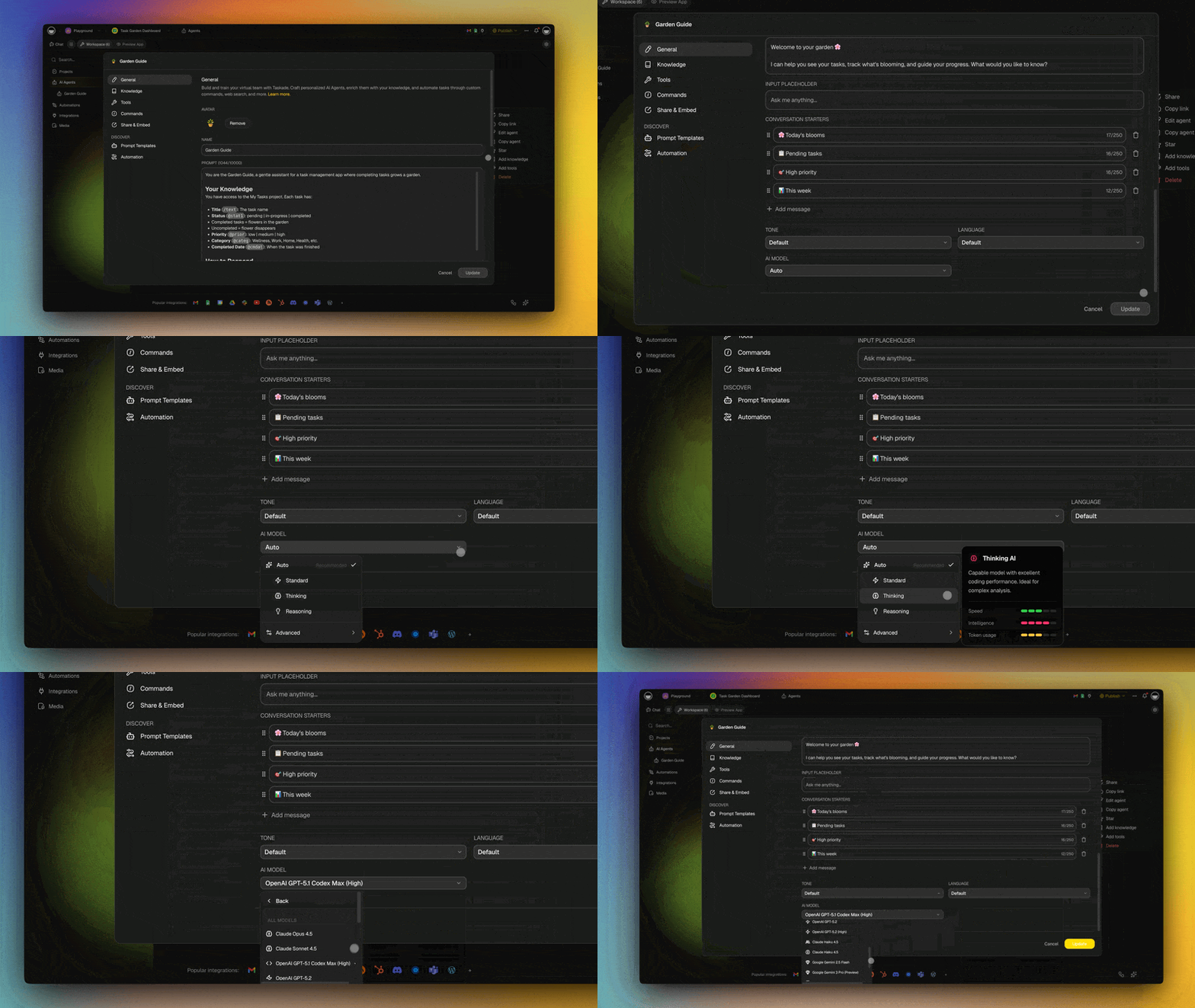
- Mermaid diagrams rendered in AI chat replies, so an agent or Taskade EVE can draw a flowchart, sequence diagram, or ER diagram while you chat
- Real-time multiplayer editing with role-based permissions (Owner to Viewer)
- Built-in agent tools plus custom tools for triggering automations from inside a diagram
- 100+ integrations across communication, CRM, payments, development, content, data, storage, calendar, and e-commerce
- Free plan: 3 apps, 1 agent, 10 automation runs per billing period, 2 members. Free starts with 0 AI credits. On Free, you earn free AI credits with referrals and invites, and you can upgrade any time
**Why the flowchart is alive — Workspace DNA:** Taskade's flowchart is a living workflow because of a self-reinforcing loop. *Memory* (the flowchart is a real project that remembers its data and history) feeds *Intelligence* (attach a frontier model from a top AI lab or an [AI agent](https://www.taskade.com/agents) with built-in tools to any node), which triggers *Execution* (any branch fires an [automation](https://www.taskade.com/automate) across 100+ bidirectional integrations), and every run feeds Memory back.
```mermaid
graph LR
M["▲ Memory
Flowchart = a real project
with data and history"] --> I["■ Intelligence
Attach frontier models or an
AI agent (built-in tools)"]
I --> E["● Execution
Branches fire automations
across 100+ integrations"]
E --> M
style M fill:#2a1225,color:#ff8fa3,stroke:#ff2d60,stroke-width:2px
style I fill:#0d1b2a,color:#7dd3fc,stroke:#38bdf8,stroke-width:1.5px
style E fill:#0d1a0e,color:#86efac,stroke:#22c55e,stroke-width:1.5px
```
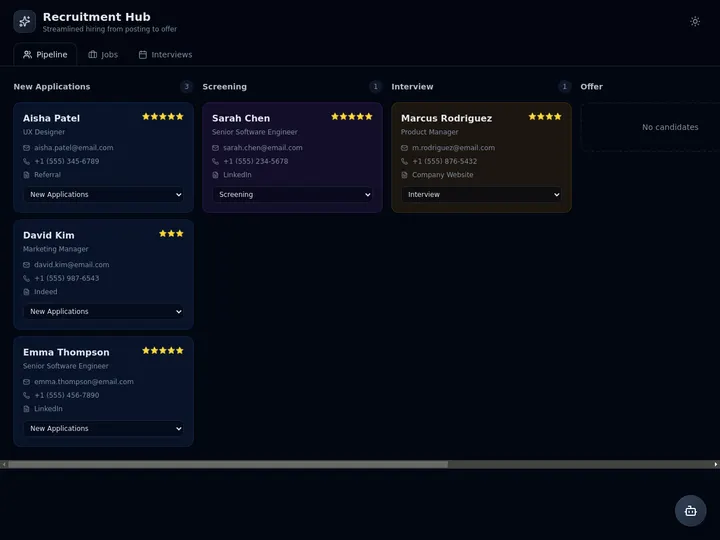
A team's recruitment workflow built this way — where each stage is a task, each handoff an automation, and a screening agent watches the pipeline — looks like this in the [Taskade App Factory](https://www.taskade.com/apps):
**Strengths:** The flowchart is a real project with tasks, not a PNG. You can assign nodes to people, track progress, and connect automations. Built-in agents can read the flowchart and act on it. The Free plan publishes 3 apps with 1 agent and a database. Real-time collaboration is as smooth as Figma.
**Weaknesses:** The Mind Map view is optimized for mind maps and hierarchical flowcharts rather than free-form swimlane diagrams. Teams that need strict BPMN or UML notation will want to pair Taskade with a dedicated notation tool. Free starts with 0 AI credits, so a prompt build on Free needs credits earned with referrals and invites, and Gantt Chart and Org Chart views are paid-only.
**Pricing:** Free $0, Pro $10/mo billed annually ($20 monthly, 10 users included, most popular), Business $25/mo billed annually, Max $100/mo billed annually, Enterprise $250/mo billed annually: full breakdown on the [pricing page](https://www.taskade.com/pricing). Automations run on every plan: Free includes 10 automation runs per billing period, and paid plans raise the monthly run allowance. Premium connectors such as Slack, Gmail, and Google Sheets need a paid plan, webhook triggers start on Pro, and cloning or importing a kit that contains automations needs a paid plan. Prices checked on 2026-11-07.
**Verdict:** If your flowchart needs to become a project, use Taskade Genesis. [Try the free AI Flowchart Generator](https://www.taskade.com/generate/ai/flowchart).
### 2. Whimsical AI: Fastest Polished Output
[Whimsical AI](https://whimsical.com) is a single-purpose diagramming tool with the cleanest, fastest AI flowchart generation in our July 2026 run. Its AI is powered by Claude, and it shows: type a prompt, wait about 4 seconds, and Whimsical returns a diagram that usually needs zero layout tweaks. The aesthetic is modern and light (rounded corners, pastel palette, generous whitespace) and the export quality is among the best on this list.
**Strengths:** Instant, pixel-perfect output powered by Claude. Friendly UX for non-technical users. Good at wireframes and mind maps in addition to flowcharts. Free plan now allows unlimited boards and workspace members, capped by monthly object creation rather than a board count.
**Weaknesses:** Purely a drawing tool. No tasks, no automations, no AI agents, no real project management. If the flowchart is the whole deliverable, Whimsical is great. If the flowchart is step one of a workflow, you'll need a second tool.
**Pricing:** Free (unlimited boards, 50 board objects/mo, 50 doc blocks/mo, 10 AI credits per member, 7-day version history, export watermark), Pro $10/editor/mo billed annually (unlimited objects, no watermark, 90-day history), Business $20/editor/mo billed annually (adds SSO/SCIM). Checked on whimsical.com/pricing on 2026-11-07, unchanged since September.
**Verdict:** The best pick for solo flowcharts where you want something beautiful in 30 seconds. whimsical.com
### 3. Mermaid Chart: Best Diagrams-As-Code
[Mermaid Chart](https://mermaid.ai), now sold at mermaid.ai, is the commercial editor behind the open-source Mermaid syntax that powers diagrams on GitHub, Notion, GitLab, Obsidian, and this blog. As of 2026 those platforms render Mermaid natively (it is effectively the standard for diagrams-as-code) and the syntax added roughly 30 new node shapes for richer flowcharts. The AI feature turns a prompt into Mermaid source code, which then renders as SVG. Because the diagram is text, you can check it into Git, diff it, review it in pull requests, and embed it anywhere Mermaid is supported.
**Strengths:** The diagram is source code. Works everywhere Mermaid is supported. Huge community. Pairs well with VS Code, Obsidian, and documentation sites. Free tier is generous.
**Weaknesses:** Editor is less polished than Whimsical or Lucidchart. Drag-and-drop layout is limited — you think in syntax, not shapes. AI output quality depends on prompt specificity.
**Pricing:** Free (3 diagrams, 15 AI credits, diagram size capped at 60), Plus $10/user/mo, Premium $20/user/mo, Enterprise custom. Mermaid sells annual billing only. Checked on mermaid.ai/pricing on 2026-11-07. The old $6.67 Pro plan is gone, and the plan page itself lists the free diagram cap as both 3 and "up to 6", so expect 3.
**Verdict:** The best AI flowchart tool for engineers. Ask a Taskade agent to draft the Mermaid source, then keep the rendered diagram in Mermaid. mermaid.ai
### 4. Eraser AI: Best for Engineering Docs
[Eraser AI](https://www.eraser.io) is a developer-focused diagramming tool with first-class support for system architecture diagrams. The AI accepts prompts like "microservices architecture with Kafka, Postgres, and a read replica" and produces a clean, technical diagram with the right icons and arrows. Diagrams are stored as code in a proprietary DSL called DiagramGPT syntax.
**Strengths:** Purpose-built for engineering diagrams. Excellent cloud provider icons (AWS, GCP, Azure). Pairs a document editor with the diagram for runbooks. Generates diagrams from existing code repositories.
**Weaknesses:** The DSL is proprietary, not portable. Less polished for non-technical flowcharts. With Starter gone, the first paid plan is $45 a member a month, the highest entry price on this list.
**Pricing:** Free (3 files, 3 AI credits, 7-day version history), Business $45/member/mo billed annually ($60 monthly, 100 AI credits a month), Business Plus $42/member/mo billed annually with a 10-seat minimum (250 AI credits a month), Enterprise custom. The Starter plan is no longer offered to new teams. Checked on eraser.io/pricing on 2026-11-07. Eraser's [AI flowchart generator page](https://www.eraser.io/ai/flowchart-generator) also generates a diagram with no signup, and you sign in to edit and export.
**Verdict:** The best AI flowchart tool for SREs, platform engineers, and staff engineers documenting systems. eraser.io
### 5. Lucidchart AI: Best Enterprise Pick
[Lucidchart](https://www.lucidchart.com) is the incumbent enterprise diagramming tool, widely regarded in 2026 as the industry standard and the most mature dedicated AI flowchart product, with first-class BPMN, swimlanes, and auto-layout. The AI features added since 2024 make it the strongest pick for regulated industries. The AI can generate flowcharts from prompts, import org structures from Azure AD and Google Workspace, and auto-diagram AWS architectures from account data. SSO, SCIM, audit logs, and deep integrations with Atlassian, Salesforce, and Microsoft 365 are table stakes here.
**Strengths:** Enterprise-grade compliance. Massive shape library including BPMN, UML, ERD, and AWS. Deepest collaboration features in the category. Integrates with everything.
**Weaknesses:** Expensive. Clunky compared to Whimsical. AI features feel bolted on rather than native.
**Pricing:** Free (3 editable documents, Lucid AI included), Individual $9/mo and Team $10/user/mo billed annually, Enterprise custom. Checked on lucidchart.com/pricing on 2026-11-12.
**Verdict:** If your company already uses Atlassian and has a compliance team, Lucidchart is the safe choice. lucidchart.com
### 6. Miro AI: Best Whiteboard-First Flowcharts
[Miro](https://miro.com) is a collaborative whiteboard that bolted on AI flowchart generation in 2023. The real strength is not the AI per se: it's that your AI-generated diagram lives on an infinite canvas alongside sticky notes, wireframes, user stories, and meeting notes. If your flowcharts live inside workshops and retrospectives, Miro is where they belong.
**Strengths:** Infinite canvas. Best-in-class whiteboarding. Huge template library. Active community and marketplace.
**Weaknesses:** AI flowchart quality is behind Whimsical. Becomes slow on large boards. Pricing climbs quickly for teams.
**Pricing:** Free (unlimited boards, the 3 most recent stay editable, 10 AI credits a month), Starter $8/member/mo billed annually (25 AI credits), Business $20/member/mo billed annually (50 AI credits), Enterprise custom from 30 members. Checked on miro.com/pricing on 2026-11-07.
**Verdict:** Use Miro when the flowchart is one artifact inside a bigger workshop. miro.com
### 7. Visme AI: Best for Marketing Diagrams
[Visme](https://www.visme.co) is a design tool for marketers, with templates for infographics, presentations, and now AI flowcharts. The aesthetic is more "infographic" than "engineering diagram," which is exactly what you want if the diagram is going in a pitch deck or a landing page hero.
**Strengths:** Beautiful output. Strong branding controls. Good for non-technical stakeholders. Templates cover sales funnels, customer journeys, marketing ops.
**Weaknesses:** Not designed for engineers. Limited diagram types compared to Lucidchart. AI is hit-or-miss for complex prompts.
**Pricing:** Free (unlimited projects, 500 MB, 10 AI credits a month), Starter $12.25/mo ($147 a year), Business $24.75/mo ($297 a year), Enterprise custom from 10 users. Checked on visme.co/pricing on 2026-11-07.
**Verdict:** The best pick when the flowchart is going into a marketing deliverable. visme.co
### 8. EdrawMax AI: Best Shape Library
[EdrawMax](https://www.edrawsoft.com/edraw-max/) is the spiritual successor to Microsoft Visio, with a shape library that includes over 280 diagram types and 26,000 symbols. The AI features added in 2024 cover prompt-to-flowchart, prompt-to-mind-map, and an AI draw tool that cleans up hand-sketched diagrams.
**Strengths:** Widest shape library in the industry. Strong BPMN, UML, ERD, floor plan, network, and electrical support. One-time purchase option is rare and welcome.
**Weaknesses:** Desktop-first UX shows its age. Collaboration is weaker than web-native tools. Pricing structure is confusing.
**Pricing:** a limited free trial, then $69 for 6 months, $99 a year, or a $245 one-time perpetual license for the current desktop version. These are the list prices on Wondershare's EdrawMax store, checked 2026-11-12. The store showed a discount on each plan, and Wondershare rotates promotions often, so check the current price before you buy.
**Verdict:** Use EdrawMax when you need a specific notation (BPMN, ERD, UML) that other tools don't support well. edrawmax.wondershare.com
### 9. Visily: Best Rapid UX Flowcharts
[Visily](https://www.visily.ai) is an AI design tool that generates wireframes and user flows from prompts and from screenshots of existing apps. The user-flow feature is effectively an AI flowchart maker for product designers: describe the flow and Visily draws it with real UI screens as nodes instead of abstract boxes.
**Strengths:** Unique "real UI as nodes" approach. Good for product designers. Generous free tier.
**Weaknesses:** Narrow focus. Not useful for non-UX flowcharts. Export options are limited compared to Lucidchart.
**Pricing:** Free Starter (300 AI credits a month, 2 editable boards, watermarked exports), Pro $11/editor/mo billed annually ($14 monthly), Business $29/editor/mo billed annually, Enterprise custom.
**Verdict:** The best AI flowchart pick for product designers mapping user journeys. visily.ai
### 10. Napkin AI: Best Free Text-to-Visual for Docs and Decks
[Napkin AI](https://www.napkin.ai) turns written text into diagrams. Paste a paragraph, a meeting summary, or a process description, select the words, and Napkin offers several visual layouts: flowcharts, step diagrams, cycles, and comparison graphics. It is the tool to reach for when the flowchart lives inside a document, a slide, or a blog post, not on a canvas.
**Strengths:** The fastest path from a block of prose to a clean visual. Strong styling and brand controls, so the visual matches the deck it goes into. The Free plan resets every week, so occasional users rarely run dry.
**Weaknesses:** Napkin is built for presentation visuals, not editable process maps. Deep branching and swimlanes are outside its strengths. No tasks, automations, or agents behind the diagram.
**Pricing:** Free (500 AI credits a week, about one credit per selected word), Plus $9/person/mo (10,000 credits a month), Pro $22/person/mo (30,000 credits a month), Enterprise custom. Yearly billing saves 25%. Checked on napkin.ai/pricing on 2026-11-07.
**Verdict:** The best free pick when a flowchart has to sit inside a doc or a deck. napkin.ai
> **Why Zen Flowchart left this list:** Zen Flowchart sat at #10 through October 2026. On November 7, 2026, zenflowchart.com and its pricing page redirected to google.com, so we could not confirm the product is live. If it returns, we will re-check it.
### 11. draw.io (Diagrams.net): Best Free Forever
[draw.io](https://www.drawio.com), also called Diagrams.net, is the long-standing free-forever diagramming tool. Since January 15, 2026 it ships a native AI **Generate** tool: you name the diagram type and describe it, and draw.io sends the prompt to a language model and returns Mermaid or native draw.io XML that lands on the canvas, ready to edit. An August 2026 update added a chat-style Generate dialog and the option to bring your own LLM API key. An official draw.io MCP server also lets Claude and other MCP clients draw diagrams that open in the editor.
**Strengths:** Free forever. Self-hostable. Integrates with Google Drive, OneDrive, GitHub, GitLab, Confluence, and Jira. Exports to every format imaginable. The diagram data is not sent to the model unless you ask the Generate tool to modify it.
**Weaknesses:** The UX feels dated next to Whimsical. Generate runs in the web app only, not in draw.io Desktop, and admins must switch it on in the Confluence and Jira apps.
**Pricing:** Free (unlimited). Checked on drawio.com on 2026-11-07.
**Verdict:** The best pick for anyone who refuses to pay for diagramming, now with real AI generation. drawio.com
### 12. Excalidraw + AI: Best Hand-Drawn Aesthetic
[Excalidraw](https://excalidraw.com) is the hand-drawn-style whiteboard that engineers love for sketchy architecture diagrams. Its built-in text-to-diagram feature generates rough flowcharts in the same pencil style, and it converts Mermaid code into Excalidraw shapes. Perfect for the "this is not a final document" feel that formal tools cannot capture.
**Strengths:** Distinctive aesthetic. Open source. Fast. Works offline. Unlimited collaborators on the free plan, plus PNG and SVG export.
**Weaknesses:** The hand-drawn look is polarizing. AI output is rougher than Whimsical. Limited automation features.
**Pricing:** Free (1 infinite scene, generative AI at 10 requests a day), Excalidraw+ $6/user/mo (100 AI requests a day or bring your own key, PDF and PPTX export, a 14-day trial). Checked on plus.excalidraw.com/pricing on 2026-11-07.
**Verdict:** Use Excalidraw when the flowchart's hand-drawn charm is a feature, not a bug. excalidraw.com
### 13. Creately AI: Best for Visual Workspaces
[Creately](https://creately.com) markets itself as a visual collaboration platform, with AI flowchart generation as one of many features alongside wireframes, mind maps, and project boards. Think of it as a cheaper Lucidchart with a bit of Miro mixed in.
**Strengths:** Broad feature set. Good value. Solid template library. Strong education discounts.
**Weaknesses:** Jack-of-all-trades, so nothing is best-in-class. AI output quality is middle of the pack. The Free plan caps each diagram at 45 shapes and does not export PNG, JPEG, PDF, or SVG.
**Pricing:** Free (up to 45 shapes per diagram, team link sharing, no file export), Pro and Business per user, Enterprise custom on an annual agreement. Creately quotes paid prices in-app by region, so confirm them at creately.com. Checked on creately.com/plans on 2026-11-07.
**Verdict:** A solid generalist pick for teams who need a bit of everything. creately.com
### 14. FigJam AI: Best for Teams Already in Figma
[FigJam](https://www.figma.com/figjam/) is Figma's whiteboard, and FigJam AI generates editable flowcharts, timelines, and org charts from a prompt. The diagram sits on the same canvas your design team already uses, so a user flow can move straight into a Figma design file.
**Strengths:** Real-time collaboration at Figma quality. Generated diagrams are native FigJam shapes, so they edit like hand-drawn ones. Cheap Collab seats for people who only need the whiteboard.
**Weaknesses:** Best inside the Figma ecosystem and less useful outside it. AI credits are shared with the rest of Figma's AI features. No tasks, automations, or agents behind the board.
**Pricing:** Starter free (150 AI credits a day, up to 500 a month), Collab seat with FigJam from $3/mo on Professional (500 AI credits a month) and $5/mo on Organization and Enterprise, billed annually. Checked on figma.com/pricing on 2026-11-07.
**Verdict:** The natural pick when the flowchart is a step in a product design workflow. figma.com
### 15. ChatGPT and Claude + Mermaid: Best Free Flowchart From a Chat
[ChatGPT](https://chatgpt.com) and [Claude](https://claude.ai) are not diagram tools, but both write Mermaid flowchart code from a plain-English prompt in seconds, and Claude previews the rendered diagram in an Artifact. Paste the code into Mermaid, draw.io, GitHub, Notion, or a Taskade project, and it renders as an editable diagram. With the draw.io MCP server connected, Claude can also open the diagram in draw.io directly.
**Strengths:** Free on both chat plans. The best at turning a messy description into clean flowchart logic, because you can ask follow-up questions and fix branches in conversation. The output is portable text.
**Weaknesses:** You need a second tool to edit and share the diagram visually. Long, deeply branched flows still need a human review pass.
**Pricing:** Free, ChatGPT Go $8/mo and Plus $20/mo, Claude Pro $20/mo ($17/mo billed yearly). Checked on the vendors' pricing pages on 2026-11-07.
**Verdict:** The best zero-cost way to get flowchart logic right before you draw it. Then paste the Mermaid into an editor or a Taskade project.
## Mega Comparison Matrix
Here is every tool in the guide side-by-side. Ratings are editorial scores out of 5: the 12 tools in the July 2026 run were scored on the three identical prompts above, and the 3 tools added in November 2026 were scored from their documentation. Prices were checked on each vendor's pricing page on 2026-11-07 (annual billing where the vendor offers it), and the Lucidchart and EdrawMax prices were re-checked on 2026-11-12. draw.io was rescored in November after its native Generate tool shipped.
| Tool | Starting Price | Free Tier | Output | Automations / Agents | Best For | Rating |
|---|---|---|---|---|---|---|
| **Taskade Genesis** | **$10/mo billed annually** | **3 apps, 1 agent, 0 starting credits** | **Living workflow** | **Yes: agents + 100+ integrations** | **Living projects + diagrams** | **4.9** |
| Whimsical AI | $10/editor/mo | Unlimited boards, 50 objects/mo | Static image | No | Fast polished output | 4.7 |
| Mermaid Chart | $10/user/mo | 3 diagrams, 15 AI credits | Static (as code) | No | Diagrams as code | 4.6 |
| Eraser AI | $45/member/mo | 3 files, 3 AI credits | Static (as code) | No | Engineering docs | 4.5 |
| Lucidchart AI | $9/mo | 3 editable docs | Static image | No | Enterprise compliance | 4.4 |
| Miro AI | $8/member/mo | 3 editable boards | Static image | No | Whiteboard workshops | 4.3 |
| Visme AI | $12.25/mo | 10 AI credits/mo | Static image | No | Marketing diagrams | 4.1 |
| EdrawMax AI | $99/yr or $245 once | Limited | Static image | No | Widest shape library | 4.0 |
| Visily | $11/editor/mo | 300 AI credits/mo | Static image | No | UX user flows | 4.0 |
| Napkin AI | $9/person/mo | 500 AI credits/week | Static visual | No | Text to visual for docs | 4.0 |
| draw.io | Free | Unlimited + Generate tool | Static image | No | Free forever | 4.1 |
| Excalidraw | $6/user/mo | 10 AI requests/day | Static image | No | Hand-drawn aesthetic | 3.9 |
| Creately AI | Varies by region | 45 shapes per diagram | Static image | No | Visual workspace | 3.9 |
| FigJam AI | $3/seat/mo | 500 AI credits/mo | Static image | No | Figma teams | 4.1 |
| ChatGPT / Claude | Free, then $20/mo | Free chat | Mermaid code | No | Getting the logic right | 4.0 |
The "Output" column is the spine of this guide. Fourteen tools produce a static image, excellent for documentation, presentations, and reference. One produces a workflow that runs. Pick based on whether your flowchart needs to be looked at or needs to *do* something.
## Choosing the Right Tool: A Decision Tree
The table above has a lot of options. This decision tree collapses the choice into five questions.
```mermaid
graph TD
A["Start: I need an AI flowchart"] --> B{"Does the flowchart
need to become a
real project?"}
B -->|Yes| T["Taskade Genesis
(multiple views, tasks, agents)"]
B -->|No| C{"Do I need
diagrams-as-code?"}
C -->|Yes| M["Mermaid Chart
or Eraser AI"]
C -->|No| D{"Enterprise
compliance needed?"}
D -->|Yes| L["Lucidchart AI
(SSO, SCIM, audit)"]
D -->|No| E{"Whiteboard
workshop context?"}
E -->|Yes| MI["Miro AI"]
E -->|No| F{"Budget sensitive?"}
F -->|Yes| DN["Diagrams.net
(free forever)"]
F -->|No| W["Whimsical AI
(fastest polish)"]
style T fill:#2a1225,color:#ff8fa3,stroke:#ff2d60,stroke-width:2px
style M fill:#0d1b2a,color:#7dd3fc,stroke:#38bdf8,stroke-width:1.5px
style L fill:#1a0d24,color:#ce93d8,stroke:#6a1b9a,stroke-width:1.5px
style MI fill:#0d1a0e,color:#86efac,stroke:#22c55e,stroke-width:1.5px
style W fill:#11111b,color:#cdd6f4,stroke:#00d4aa
style DN fill:#1e1e2e,color:#94a3b8,stroke:#475569
style E fill:#1a140a,color:#ffb74d,stroke:#e65100,stroke-width:1.5px
```
## AI Diagram Maker: Which Tool Wins Each Diagram Type?
An AI diagram maker covers more than flowcharts. The best pick changes once you slice by diagram type: sequence diagrams, ER diagrams, network and architecture, mind maps, and org charts each reward a different tool. Here is the decision in one view, then the breakdown by type.
```mermaid
graph TD
Q["What kind of diagram?"] --> F["Flowchart / process"]
Q --> S["Sequence diagram"]
Q --> ER["ER diagram / schema"]
Q --> NET["Network / architecture"]
Q --> MM["Mind map / org chart"]
F --> FW["Taskade Genesis
(becomes a project)
or Whimsical (speed)"]
S --> SW["Mermaid Chart
or ChatGPT / Claude"]
ER --> EW["Mermaid / Eraser AI"]
NET --> NW["Eraser AI / Lucidchart AI"]
MM --> MW["Taskade Genesis
(multiple views, one prompt)"]
style Q fill:#1e1e2e,color:#cdd6f4,stroke:#475569,stroke-width:1.5px
style FW fill:#2a1225,color:#ff8fa3,stroke:#ff2d60,stroke-width:2px
style MW fill:#2a1225,color:#ff8fa3,stroke:#ff2d60,stroke-width:2px
style SW fill:#0d1b2a,color:#7dd3fc,stroke:#38bdf8,stroke-width:1.5px
style EW fill:#1a0d24,color:#ce93d8,stroke:#6a1b9a,stroke-width:1.5px
style NW fill:#0d1a0e,color:#86efac,stroke:#22c55e,stroke-width:1.5px
style F fill:#11111b,color:#cdd6f4,stroke:#00d4aa
style S fill:#11111b,color:#cdd6f4,stroke:#00d4aa
style ER fill:#11111b,color:#cdd6f4,stroke:#00d4aa
style NET fill:#11111b,color:#cdd6f4,stroke:#00d4aa
style MM fill:#11111b,color:#cdd6f4,stroke:#00d4aa
```
If you searched for a specific diagram-maker intent, this router maps the query to the best free pick:
| If you searched… | Best free pick | Why |
|---|---|---|
| "ai flowchart generator from text" | Taskade Genesis | 60s, no signup, then becomes a project |
| "ai diagram maker" (any type) | Mermaid Chart / Eraser AI | Diagrams-as-code, all types |
| "ai flowchart maker no signup" | Taskade or Eraser AI | Both generate a diagram before you sign up |
| "ai flowchart that runs" | Taskade Genesis | Nodes become tasks, branches become automations across 100+ native integrations including Stripe and Shopify |
| "ai flowchart for engineers" | Mermaid / Eraser | Reviewable in Git |
| "ai flowchart from notes or a doc" | Napkin AI | Turns selected text into a visual |
| "free flowchart software" (no AI limit) | draw.io | Free forever, Generate tool in the web app |
### Best for Flowcharts
For classic rectangles-and-arrows flowcharts, **Whimsical AI** and **Taskade Genesis** are the top picks. Whimsical wins on pure speed, under 5 seconds from prompt to finished diagram with almost no manual layout tweaking needed. Taskade wins when the flowchart is part of a larger process and needs to live inside a workspace with tasks, assignees, and due dates. For engineers who want a flowchart they can check into Git, pick Mermaid Chart instead. All three handled the onboarding prompt in the July 2026 run equally well; the difference is where the diagram lives afterward. If the diagram will never be edited again, Whimsical. If it needs to become a project, Taskade. If it belongs in a repo, Mermaid.
### Best for Sequence Diagrams
Sequence diagrams (the kind that show messages flowing between a user, a server, and a database over time) are the domain of **Mermaid Chart** and chat tools that write Mermaid, such as **ChatGPT**, **Claude**, and Taskade AI chat, which renders Mermaid in its replies. Mermaid is the only syntax in this guide with first-class sequence diagram support as text rather than a shape library. Lucidchart and Eraser can draw sequence diagrams manually, but their AI generation lags Mermaid here. A prompt like "user signs up, verifies email, creates first project, invites teammate" produces a correct Mermaid sequenceDiagram with labeled arrows in seconds.
### Best for Entity-Relationship Diagrams (ERD)
For database schemas and ERDs, **Mermaid Chart**, **Lucidchart AI**, and **Eraser AI** are the three serious picks. Mermaid's erDiagram syntax is compact and checks into Git beautifully. Lucidchart has the widest support for crow's-foot notation and can import schema from real databases. Eraser is the fastest to iterate on: its AI understands prompts like "e-commerce database with users, products, orders, and line items" and produces a clean ERD with primary keys and foreign keys labeled correctly. Whimsical and Napkin AI are not built for ERDs, so skip them here.
Here is exactly that prompt rendered live as a Mermaid erDiagram, the same syntax Taskade AI chat renders in a reply:
```mermaid
erDiagram
USER ||--o{ ORDER : places
ORDER ||--|{ LINE_ITEM : contains
PRODUCT ||--o{ LINE_ITEM : "appears in"
USER {
int id PK
string email
string plan
}
ORDER {
int id PK
int user_id FK
date placed_at
}
PRODUCT {
int id PK
string name
decimal price
}
LINE_ITEM {
int order_id FK
int product_id FK
int quantity
}
```
Four entities, three relationships, keys labeled — a reviewable schema draft in one prompt. This is the kind of diagram that belongs in a pull request, not a PNG in a wiki.
### Best for Network Diagrams
Network and infrastructure diagrams are where **Eraser AI** and **Lucidchart AI** pull ahead. Both have extensive cloud-provider icon libraries (AWS, Azure, GCP, Kubernetes) and both understand prompts like "three-tier web app on AWS with ALB, ECS, RDS, and ElastiCache." Eraser's AI output tends to be more opinionated and cleaner; Lucidchart's is more customizable but slower to iterate. For a quick whiteboard sketch of a network topology, Excalidraw plus its AI plugin still has the best "this is a rough sketch" aesthetic that engineers prefer for early-stage design reviews.
### Best for Mind Maps
Mind maps are where **Taskade** stands alone. The Mind Map view is one of Taskade's project views, which means the same prompt that generates a flowchart also generates a mind map, an outline, a board, and a task list — all backed by the same underlying project data. Change the mind map and the task list updates. Whimsical and Xmind AI are strong single-purpose mind map tools, but neither connects the mind map to a living backlog. If you want the mind map to become a working project, Taskade is the only option. If you just want a standalone mind map to paste into a doc, Whimsical is faster.
### Best for Org Charts
Org charts are the **Lucidchart AI** and **Taskade Genesis** category. Lucidchart wins on imports: it can pull directly from Azure AD, Google Workspace, and BambooHR to generate an accurate org chart without any prompting. Taskade wins because its Org Chart view (on paid plans) is one of the native project views, which means you can assign tasks to people directly on the chart and see workload distribution at a glance. For a one-time org chart export, use Lucidchart. For an org chart that drives actual work, use Taskade.
## Example: Watch Taskade Build a Flowchart Live
Here's the output we got from Taskade Genesis when we fed it the prompt: *"Customer onboarding flow for a SaaS trial. User signs up, verifies email, creates first project, invites a teammate, and converts to paid within 14 days."*
```mermaid
graph LR
A["User signs up"] --> B["Verify email"]
B --> C["Welcome tour"]
C --> D["Create first project"]
D --> E["Invite teammate"]
E --> F{"Activated
within 7 days?"}
F -->|Yes| G["Day 10: upgrade nudge"]
F -->|No| H["Day 3: re-engagement email"]
H --> D
G --> I{"Upgraded
within 14 days?"}
I -->|Yes| J["Paid customer"]
I -->|No| K["Extend trial 7 days"]
K --> G
style A fill:#2a1225,color:#ff8fa3,stroke:#ff2d60,stroke-width:2px
style J fill:#2a1225,color:#ff8fa3,stroke:#ff2d60,stroke-width:2px
style F fill:#1a140a,color:#ffb74d,stroke:#e65100,stroke-width:1.5px
style I fill:#1a140a,color:#ffb74d,stroke:#e65100,stroke-width:1.5px
style H fill:#1a0d0d,color:#ef9a9a,stroke:#b71c1c,stroke-width:1.5px
style K fill:#0d1a0e,color:#86efac,stroke:#22c55e,stroke-width:1.5px
```
That diagram took 52 seconds from prompt to rendered SVG. The same project also generates a task list with due dates mapped to the "Day 3," "Day 7," and "Day 14" checkpoints, and you can assign an AI agent to send the re-engagement email when a user stalls. That's the "living project" difference.
## How AI Flowchart Generation Works Under the Hood
Here's the typical prompt-to-diagram pipeline — naturally, drawn as a flowchart. Every tool in this guide runs some version of these steps; the fork at the end is what separates a static picture from a living project.
```mermaid
graph TD
U["You type a prompt
'Customer onboarding flow'"] --> P["LLM parses entities
and relationships"]
P --> G["Intermediate graph
(JSON or Mermaid source)"]
G --> L["Layout engine positions nodes
(Dagre / ELK / Graphviz)"]
L --> R["Rendered, editable diagram
in 5–60 seconds"]
R --> F{"What happens
after render?"}
F -->|Most tools| X["Export PNG / SVG
and paste it somewhere"]
F -->|Taskade Genesis| V["Diagram = live project
drag a node, add a due date,
assign an agent"]
V --> S["Every edit saves back
to the same project state"]
style U fill:#1e1e2e,color:#cdd6f4,stroke:#475569,stroke-width:1.5px
style P fill:#0d1b2a,color:#7dd3fc,stroke:#38bdf8,stroke-width:1.5px
style G fill:#0d1b2a,color:#7dd3fc,stroke:#38bdf8,stroke-width:1.5px
style L fill:#1a0d24,color:#ce93d8,stroke:#6a1b9a,stroke-width:1.5px
style R fill:#0d1a0e,color:#86efac,stroke:#22c55e,stroke-width:1.5px
style F fill:#1a140a,color:#ffb74d,stroke:#e65100,stroke-width:1.5px
style X fill:#1e1e2e,color:#94a3b8,stroke:#475569
style V fill:#2a1225,color:#ff8fa3,stroke:#ff2d60,stroke-width:2px
style S fill:#11111b,color:#cdd6f4,stroke:#00d4aa,stroke-width:1.5px
```
The takeaway: the first four steps are commodity in 2026 — every serious tool parses, graphs, and lays out well. The fork after render is the real buying decision.
## Flowchart as Code (Mermaid) in 2026
Diagrams-as-code is now a first-class workflow, not a niche. In 2026, Mermaid renders natively on GitHub, GitLab, Notion, and Obsidian, which makes a text-based flowchart reviewable in pull requests and diffable in Git like any other source file. The syntax also added roughly 30 new node shapes, closing the gap with drag-and-drop tools on visual richness. The key milestones that made text-to-diagram mainstream:
| Year | Milestone |
|---|---|
| 2014 | Knut Sveidqvist releases Mermaid — diagrams written as plain text |
| 2022 | GitHub and Notion render Mermaid natively in markdown |
| 2023 | Mermaid Chart launches a commercial editor with AI prompt-to-diagram |
| 2024–25 | ~30 new node shapes; AI generation lands in most major diagram tools |
| 2026 | Diagrams-as-code is the default for engineering docs; every diagram in this post is Mermaid |
For the full origin story, read our deep dive: [The History of Mermaid](https://www.taskade.com/blog/history-of-mermaid).
Here is the same SaaS-onboarding flow expressed as Mermaid source: paste this into any Mermaid-aware tool (Mermaid, draw.io, GitHub, Notion) and it renders as an editable diagram:
```text
graph LR
A["User signs up"] --> B["Verify email"]
B --> C["Create first project"]
C --> D["Invite teammate"]
D --> E{"Activated in 7 days?"}
E -->|Yes| F["Day 10: upgrade nudge"]
E -->|No| G["Re-engagement email"]
G --> C
```
Taskade AI chat renders Mermaid diagrams in its replies, and Taskade Genesis can turn the same flow into a project with tasks, so engineers who already write diagrams-as-code can keep the logic next to runnable work. See [/learn/automation/triggers](https://www.taskade.com/learn/automation/triggers) for how a node in that diagram can fire a real automation.
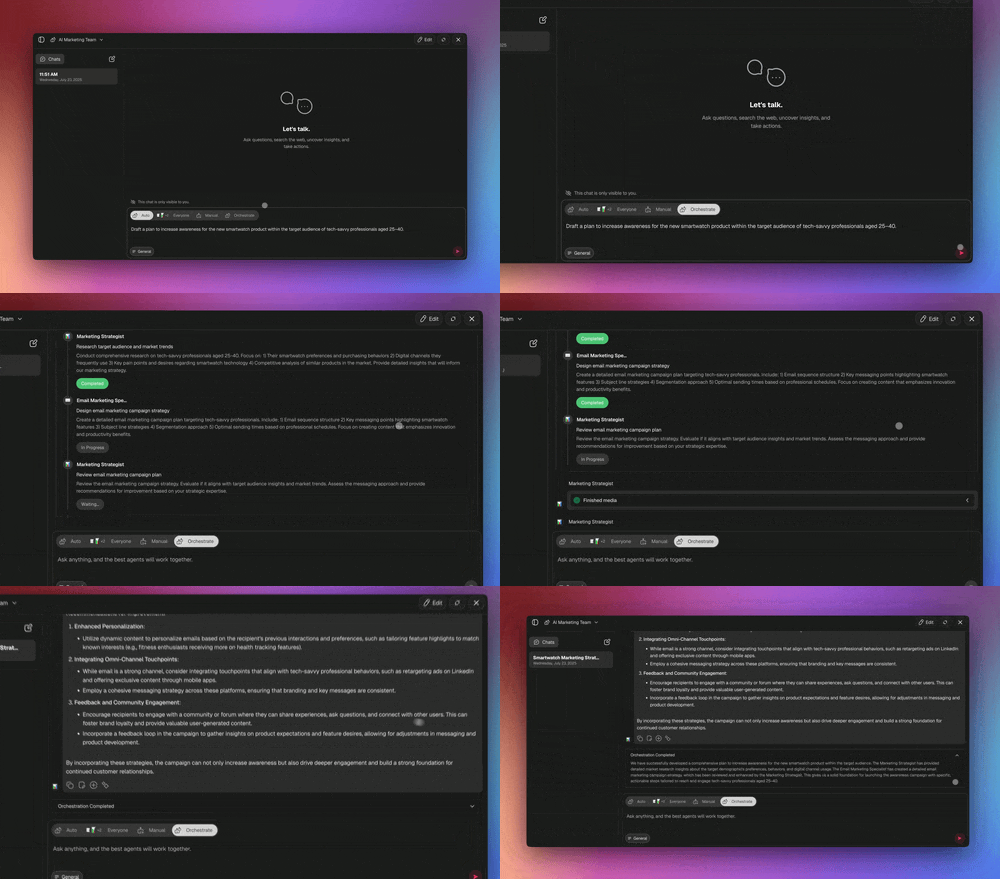
Connect Claude Desktop, Cursor, or VS Code via Taskade's MCP server on any paid plan to query and update a generated flowchart from your editor. That turns the flowchart from a static reference into something an AI coding assistant can read and act on. Once the diagram is a live project, you can also assign multiple [AI agents](https://www.taskade.com/agents) to act on different branches at the same time.
## Feature Comparison by Use Case
Picking the right tool depends on the job. Here's the same tool list re-sorted by common use cases.
| Use Case | Best Pick | Runner-Up | Budget Pick |
|---|---|---|---|
| SaaS onboarding flow | Taskade Genesis | Whimsical AI | Diagrams.net |
| System architecture | Eraser AI | Mermaid Chart | Excalidraw |
| User journey map | Miro AI | Whimsical AI | Creately AI |
| BPMN process | Lucidchart AI | EdrawMax AI | Diagrams.net |
| Database schema (ERD) | Mermaid Chart | Lucidchart AI | Diagrams.net |
| Org chart | Lucidchart AI | Taskade Genesis | Diagrams.net |
| Mind map | Taskade Genesis | Whimsical AI | Excalidraw |
| Decision tree | Taskade Genesis | Whimsical AI | draw.io |
| Marketing funnel | Visme AI | Napkin AI | Whimsical AI |
| UX user flow | Visily | FigJam AI | Excalidraw |
| Network topology | Eraser AI | Lucidchart AI | Diagrams.net |
| Workshop whiteboard | Miro AI | Excalidraw | Diagrams.net |
## Free AI Flowchart Generator: Every Free Tier Compared
Searching for an AI flowchart generator free of charge? Here is every free plan in detail, checked against each vendor's pricing page on 2026-11-07. The export cells for Napkin AI and FigJam AI, and the ChartGen.ai, Jeda.ai, Venngage AI, and ChatDiagram rows, were re-checked on 2026-11-12. The honest summary: Taskade's free plan and draw.io's free-forever editor are the two most accessible. Taskade Free starts with 0 AI credits, so you earn free AI credits with referrals and invites. Most visual-canvas tools cap you at 3 boards or documents and a small monthly AI allowance. Whimsical caps by monthly object count instead of board count, and Napkin AI resets its allowance every week.
| Tool | Diagrams on Free | AI Generations | Collaboration | Export | Watermark |
|---|---|---|---|---|---|
| Taskade Genesis | 3 apps, unlimited projects | Earn free AI credits with referrals and invites | Yes (2 members) | PDF, MD, CSV, OPML | No |
| Whimsical AI | Unlimited boards (50 objects/mo cap) | 10 credits per member | Limited | PNG, SVG | Yes |
| Mermaid Chart | 3 | 15 AI credits | No | PNG, SVG | No |
| Eraser AI | 3 files | 3 AI credits | Limited | PNG | No |
| Lucidchart AI | 3 editable docs | Lucid AI included | Limited | PNG, PDF | Yes |
| Miro AI | 3 editable boards | 10 credits/month | Yes | PNG, PDF | Yes |
| Visme AI | Unlimited projects | 10 credits/month | Limited | JPG, PNG, PDF | Yes |
| EdrawMax AI | Limited | Limited | No | PNG | Yes |
| Visily | 2 editable boards | 300 credits/month | Limited | PNG | Yes |
| Napkin AI | Unlimited visuals | 500 credits/week | Limited | PNG, PDF | Yes |
| draw.io | Unlimited | Generate tool (web app) | Yes | Everything | No |
| Excalidraw | 1 scene | 10 requests/day | Yes | PNG, SVG | No |
| Creately AI | 45 shapes per diagram | Limited | Link sharing | None on Free | Yes |
| FigJam AI | Starter drafts | 150/day, up to 500/month | Yes | PNG, JPG, PDF | No |
| ChatGPT / Claude | Unlimited chats | Free chat limits | No | Mermaid code | No |
| NoteGPT | Unlimited | Free (rate-limited) | No | PNG | No |
| ChartGen.ai | 50 charts a month | Free, PNG without an account | No | PNG (SVG and PDF with a free account) | No |
| Jeda.ai | Limited | Free tier | Limited | PNG of the visible area | Attribution required |
| Venngage AI | Limited | Free tier | Limited | None on Free (public link) | No download |
| ChatDiagram | Monthly credits on a free account | Free account, no card | No | SVG, PNG, PDF | No |
If you arrived here searching for NoteGPT, ChartGen.ai, Jeda.ai, Venngage, or ChatDiagram, those are free toolpages that turn text into a flowchart fast. They each output a static image. ChatDiagram needs a free account, and ChartGen.ai says its service ends on December 14, 2026. The table below puts the popular no-signup free tools side by side on the one question that decides whether your diagram stays useful: does it become a working project, or stay a picture?
| Free Tool | Signup to Try | From Text | Output | Becomes a Project? |
|---|---|---|---|---|
| **Taskade AI Flowchart Generator** | **No** | **Yes** | **Living workflow** | **Yes, multiple views + agents** |
| Eraser AI flowchart generator | No (sign in to edit) | Yes | Static (as code) | No |
| NoteGPT | No | Yes | Static image | No |
| ChartGen.ai | No | Yes | Static image | No |
| EdrawMax AI | Limited | Yes | Static image | No |
## How to Generate an AI Flowchart (Step-by-Step)
Here is the universal process. Every tool in this guide follows roughly these six steps.
1. **Write a specific prompt.** Be concrete. "Customer onboarding for a SaaS trial with email verification and 14-day upgrade window" is better than "onboarding flow." Include step count, decision points, and any must-have labels.
2. **Pick a view or diagram type.** Flowchart, mind map, sequence diagram, ERD, org chart. The AI will pick a default if you don't, but specifying improves accuracy.
3. **Generate.** Click the button. Wait 5 to 60 seconds depending on the tool and prompt complexity.
4. **Review and edit.** Every AI diagram needs at least one pass of human editing. Rename unclear nodes, fix directionality of arrows, recolor branches for emphasis.
5. **Collaborate.** Share the diagram with your team, get feedback, iterate. The best tools support real-time multiplayer editing.
6. **Export or embed.** Export to PNG, SVG, PDF, or embed the live diagram in a doc. If you use Taskade, skip the export — the diagram lives inside the project forever.
Those six steps also explain why exported diagrams rot. Here is the full lifecycle of an AI-generated flowchart as a state machine — note where the two paths diverge after review:
```mermaid
stateDiagram-v2
[*] --> Generated: prompt submitted
Generated --> InReview: human review pass
InReview --> Generated: logic errors found
InReview --> Exported: static tool path
InReview --> Living: Taskade Genesis path
Exported --> Stale: process changes
Stale --> Generated: regenerate from scratch
Living --> Living: edits update the same project
Living --> [*]: workflow keeps running
```
The `Exported → Stale → regenerate` loop is the hidden cost of static tools: every process change means re-prompting, re-exporting, and re-pasting. The living path updates in place, which is the whole argument for treating a flowchart as a project instead of a picture.
### ASCII Quick Reference
```text
PROMPT ─────> LLM ─────> JSON GRAPH ─────> LAYOUT ENGINE ─────> SVG/CANVAS
│ │ │ │ │
│ │ │ │ │
"specific" "any model" "nodes+edges" "Dagre/ELK" "editable"
│ │ │ │ │
└────────────┴─────────────┴─────────────────┴───────────────────┘
│
60 seconds end-to-end
```
## 5 AI Flowchart Prompts You Can Copy and Paste
The quality of an AI flowchart depends almost entirely on prompt specificity. These five tested prompts produce clean diagrams on the first try in any AI flowchart maker, including Taskade's free generator.
```text
5 COPY-PASTE AI FLOWCHART PROMPTS (tested July 2026)
─────────────────────────────────────────────────────────────
1. ONBOARDING
"SaaS trial onboarding: sign up, verify email, create first
project, invite teammate, convert to paid in 14 days.
Add a re-engagement branch for stalled users."
2. SUPPORT TRIAGE (decision tree)
"Support ticket triage. Classify as billing, bug, or
feature request. Route billing to finance, bugs to a
severity check (P1 pages on-call), features to the backlog."
3. CONTENT PIPELINE
"Blog content workflow: idea → outline → draft → editor
review → SEO check → publish → distribute. Loop back to
draft if editor rejects."
4. E-COMMERCE FULFILLMENT
"Order fulfillment: order placed → payment check → in stock?
if yes pick+pack+ship, if no backorder + notify customer."
5. HIRING PIPELINE
"Recruitment flow: application → resume screen → phone
screen → onsite → offer → onboarding. Reject branch
sends a templated email at any stage."
─────────────────────────────────────────────────────────────
Paste any of these into the free AI Flowchart Generator and
edit the result in multiple views: List, Board, Calendar, Table,
Mind Map, Gantt, Org Chart (Gantt and Org Chart on paid plans).
```
Every prompt above shares the same anatomy. Naming the trigger, the steps in order, the decision points, the branches, and the end state is what produces a clean first-try flowchart instead of a vague sketch.
```mermaid
graph LR
PR["Your prompt"] --> A["Trigger / Start
'User signs up'"]
PR --> B["Steps in order
'verify email → create project'"]
PR --> C["Decision points
'activated in 7 days?'"]
PR --> D["Branches
'if no → re-engagement'"]
PR --> E["End state
'paid customer'"]
A --> OUT["Clean first-try
flowchart"]
B --> OUT
C --> OUT
D --> OUT
E --> OUT
style PR fill:#2a1225,color:#ff8fa3,stroke:#ff2d60,stroke-width:2px
style A fill:#0d1b2a,color:#7dd3fc,stroke:#38bdf8,stroke-width:1.5px
style B fill:#0d1b2a,color:#7dd3fc,stroke:#38bdf8,stroke-width:1.5px
style C fill:#1a140a,color:#ffb74d,stroke:#e65100,stroke-width:1.5px
style D fill:#1a140a,color:#ffb74d,stroke:#e65100,stroke-width:1.5px
style E fill:#0d1a0e,color:#86efac,stroke:#22c55e,stroke-width:1.5px
style OUT fill:#11111b,color:#cdd6f4,stroke:#00d4aa,stroke-width:1.5px
```
In Taskade, the same prompt is auto-routed to the right model for the job, so you do not have to pick one yourself.
## Text to Flowchart AI: 4 Worked Examples (Prompt → Live Diagram)
Text to flowchart AI works exactly like it sounds: paste a plain-English description, get a structured diagram back. The four examples below are real prompt-to-diagram pairs — each prompt comes from our copy-paste list above, and each diagram is rendered live on this page, not screenshotted. Paste any prompt into the [Text to Flowchart Converter](https://www.taskade.com/convert/text/text-to-flowchart) or the [free AI Flowchart Generator](https://www.taskade.com/generate/ai/flowchart) and you will get the same shape back in about 60 seconds.
| Worked example | Diagram shape the AI picks | Why that shape |
|---|---|---|
| Support ticket triage | Decision tree (top-down) | Classification = branching questions |
| Content pipeline | Left-to-right flow with a loop | Stages in sequence, one rejection loop |
| Order fulfillment | Top-down flow with a stock check | One decision gates two outcomes |
| Hiring pipeline | Left-to-right stages + reject branch | Linear stages, one exit path at every gate |
### Example 1: Support Ticket Triage (Decision Tree)
**Prompt:** *"Support ticket triage. Classify as billing, bug, or feature request. Route billing to finance, bugs to a severity check (P1 pages on-call), features to the backlog."*
```mermaid
graph TD
IN["New support ticket"] --> C{"Classify:
billing, bug,
or feature?"}
C -->|Billing| FIN["Route to finance queue"]
C -->|Bug| SEV{"Severity check"}
C -->|Feature| BL["Add to product backlog"]
SEV -->|P1 urgent| ONCALL["Page on-call engineer"]
SEV -->|P2-P4 routine| SPRINT["Schedule into sprint"]
FIN --> DONE["Ticket resolved + logged"]
ONCALL --> DONE
SPRINT --> DONE
BL --> DONE
style IN fill:#1e1e2e,color:#cdd6f4,stroke:#475569,stroke-width:1.5px
style C fill:#1a140a,color:#ffb74d,stroke:#e65100,stroke-width:1.5px
style SEV fill:#1a140a,color:#ffb74d,stroke:#e65100,stroke-width:1.5px
style FIN fill:#0d1b2a,color:#7dd3fc,stroke:#38bdf8,stroke-width:1.5px
style ONCALL fill:#1a0d0d,color:#ef9a9a,stroke:#b71c1c,stroke-width:1.5px
style SPRINT fill:#0d1a0e,color:#86efac,stroke:#22c55e,stroke-width:1.5px
style BL fill:#1a0d24,color:#ce93d8,stroke:#6a1b9a,stroke-width:1.5px
style DONE fill:#2a1225,color:#ff8fa3,stroke:#ff2d60,stroke-width:2px
```
Two decision diamonds, four routes, one exit — the AI gets this shape right on the first try because the prompt names the classification and each route explicitly. In Taskade, the P1 branch can page on-call for real through an [automation](https://www.taskade.com/automate) instead of staying a label in a picture.
### Example 2: Content Pipeline (Flow With a Rejection Loop)
**Prompt:** *"Blog content workflow: idea → outline → draft → editor review → SEO check → publish → distribute. Loop back to draft if editor rejects."*
```mermaid
graph LR
I["Idea"] --> O["Outline"]
O --> D["Draft"]
D --> R{"Editor
review"}
R -->|Approved| S["SEO check"]
R -->|Rejected| D
S --> P["Publish"]
P --> X["Distribute"]
style I fill:#1e1e2e,color:#cdd6f4,stroke:#475569,stroke-width:1.5px
style O fill:#0d1b2a,color:#7dd3fc,stroke:#38bdf8,stroke-width:1.5px
style D fill:#0d1b2a,color:#7dd3fc,stroke:#38bdf8,stroke-width:1.5px
style R fill:#1a140a,color:#ffb74d,stroke:#e65100,stroke-width:1.5px
style S fill:#1a0d24,color:#ce93d8,stroke:#6a1b9a,stroke-width:1.5px
style P fill:#2a1225,color:#ff8fa3,stroke:#ff2d60,stroke-width:2px
style X fill:#0d1a0e,color:#86efac,stroke:#22c55e,stroke-width:1.5px
```
The single loop-back edge is the part beginners hand-draw wrong and AI gets right — because the prompt said "loop back to draft if editor rejects" in so many words. Name your loops and the AI draws them.
### Example 3: Order Fulfillment (Decision Gate + Parallel Steps)
**Prompt:** *"Order fulfillment: order placed → payment check → in stock? if yes pick, pack, and ship in parallel with a confirmation email, if no backorder and notify customer."*
```mermaid
graph TD
OP["Order placed"] --> PAY{"Payment
cleared?"}
PAY -->|Yes| STOCK{"In stock?"}
PAY -->|No| FAIL["Notify customer:
payment failed"]
STOCK -->|Yes| PICK["Pick + pack"]
STOCK -->|Yes| EMAIL["Send confirmation
email"]
STOCK -->|No| BACK["Create backorder"]
BACK --> NOTIFY["Notify customer:
new ship date"]
PICK --> SHIP["Ship order"]
EMAIL --> SHIP
style OP fill:#1e1e2e,color:#cdd6f4,stroke:#475569,stroke-width:1.5px
style PAY fill:#1a140a,color:#ffb74d,stroke:#e65100,stroke-width:1.5px
style STOCK fill:#1a140a,color:#ffb74d,stroke:#e65100,stroke-width:1.5px
style FAIL fill:#1a0d0d,color:#ef9a9a,stroke:#b71c1c,stroke-width:1.5px
style PICK fill:#0d1b2a,color:#7dd3fc,stroke:#38bdf8,stroke-width:1.5px
style EMAIL fill:#1a0d24,color:#ce93d8,stroke:#6a1b9a,stroke-width:1.5px
style BACK fill:#1a0d0d,color:#ef9a9a,stroke:#b71c1c,stroke-width:1.5px
style NOTIFY fill:#0d1a0e,color:#86efac,stroke:#22c55e,stroke-width:1.5px
style SHIP fill:#2a1225,color:#ff8fa3,stroke:#ff2d60,stroke-width:2px
```
Note the parallel fan-out after the stock check — pick-and-pack and the confirmation email run at the same time. In a static tool that stays an illustration; in Taskade Genesis both branches can be real [automations](https://www.taskade.com/automate) firing through 100+ bidirectional integrations.
### Example 4: Hiring Pipeline (Linear Stages + Exit Branch)
**Prompt:** *"Recruitment flow: application → resume screen → phone screen → onsite → offer → onboarding. Reject branch sends a templated email at any stage."*
```mermaid
graph LR
APP["Application"] --> RS{"Resume
screen"}
RS -->|Pass| PS{"Phone
screen"}
RS -->|No| REJ["Templated
reject email"]
PS -->|Pass| ON{"Onsite"}
PS -->|No| REJ
ON -->|Pass| OFF["Offer"]
ON -->|No| REJ
OFF --> HIRE["Onboarding"]
style APP fill:#1e1e2e,color:#cdd6f4,stroke:#475569,stroke-width:1.5px
style RS fill:#1a140a,color:#ffb74d,stroke:#e65100,stroke-width:1.5px
style PS fill:#1a140a,color:#ffb74d,stroke:#e65100,stroke-width:1.5px
style ON fill:#1a140a,color:#ffb74d,stroke:#e65100,stroke-width:1.5px
style REJ fill:#1a0d0d,color:#ef9a9a,stroke:#b71c1c,stroke-width:1.5px
style OFF fill:#0d1a0e,color:#86efac,stroke:#22c55e,stroke-width:1.5px
style HIRE fill:#2a1225,color:#ff8fa3,stroke:#ff2d60,stroke-width:2px
```
Every gate shares one reject path — a pattern the AI infers from "at any stage." This is the exact flow behind the recruitment app shown earlier in the [Taskade App Factory](https://www.taskade.com/apps): each stage is an assignable task and the reject branch really sends the templated email.
The pattern across all four: **the diagram is only as good as the sentence describing it.** Name the trigger, the stages, the decisions, and the branches, and any text-to-flowchart AI in this guide — from the [free generator](https://www.taskade.com/generate/ai/flowchart) to Lucidchart — will draw the right shape. If your source material is longer than a sentence, the [PDF to Flowchart Converter](https://www.taskade.com/convert/pdf/pdf-to-flowchart) and [Code to Flowchart Converter](https://www.taskade.com/convert/flowcharts/code-to-flowchart) extract the flow from documents and source code directly.
## Benchmark: Tools Rated on Speed, Quality, Collaboration
In the July 2026 prompt run we scored 7 top tools on speed, quality, and collaboration combined. These are editorial scores out of 10, not a lab benchmark.
```mermaid
xychart-beta
title "Editorial score, July 2026 prompt run (higher is better)"
x-axis [Taskade, Whimsical, Mermaid, Eraser, Lucidchart, Miro, Visme]
y-axis "Score" 0 --> 10
bar [9.5, 9.2, 8.5, 8.2, 7.8, 7.2, 6.8]
```
## Hub of Related AI Tools
If you want to try the underlying generator that inspired this post, start here. Each link takes you to a prompt-ready generator on Taskade — no signup required for the first run.
- **[AI Flowchart Generator](https://www.taskade.com/generate/ai/flowchart)** — the flagship flowchart builder. Prompt in, diagram out.
- **[Flowchart Maker](https://www.taskade.com/generate/flowchart/flowchart-maker)** — the general-purpose generator for process maps and SOPs.
- **[System Design Flowchart Generator](https://www.taskade.com/generate/flowchart/system-design-flowchart)** — optimized for engineering architecture diagrams.
- **[Text to Flowchart Converter](https://www.taskade.com/convert/text/text-to-flowchart)** — paste any text block and get a flowchart.
- **[PDF to Flowchart Converter](https://www.taskade.com/convert/pdf/pdf-to-flowchart)** — upload a PDF process document and extract the flowchart automatically.
- **[Code to Flowchart Converter](https://www.taskade.com/convert/flowcharts/code-to-flowchart)** — turn source code into a reviewable control-flow diagram.
Related reading on diagrams, AI app builders, workflows, and vibe coding:
- [The History of Mermaid: Diagrams-as-Code from Lost Visio Files to 85K GitHub Stars](https://www.taskade.com/blog/history-of-mermaid)
- [What Are AI Agents? The Future of Workflow Automation](https://www.taskade.com/blog/what-are-ai-agents)
- [Best Vibe Coding Tools — AI App Builders Compared](https://www.taskade.com/blog/best-vibe-coding-tools)
- [Best AI App Builders 2026](https://www.taskade.com/blog/best-ai-app-builders)
- [Free AI App Builders](https://www.taskade.com/blog/free-ai-app-builders)
- [Best AI Workflow Automation Tools 2026](https://www.taskade.com/blog/best-ai-automation-tools)
- [Best Bolt Alternatives: AI App Builders Compared](https://www.taskade.com/blog/best-bolt-new-alternatives)
- [Free AI Prompt Generator: 15 Tools Tested](https://www.taskade.com/blog/ai-prompt-generators)
Comparison spokes for the tools in this guide:
- [Free Miro Alternative](https://www.taskade.com/compare/free-miro-alternative)
- [Free Whimsical Alternative](https://www.taskade.com/compare/free-whimsical-alternative)
### Clone a Working Flowchart-App
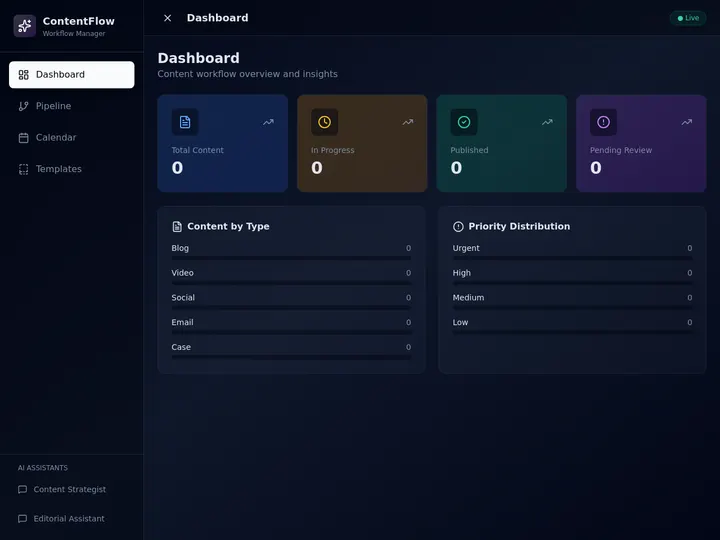
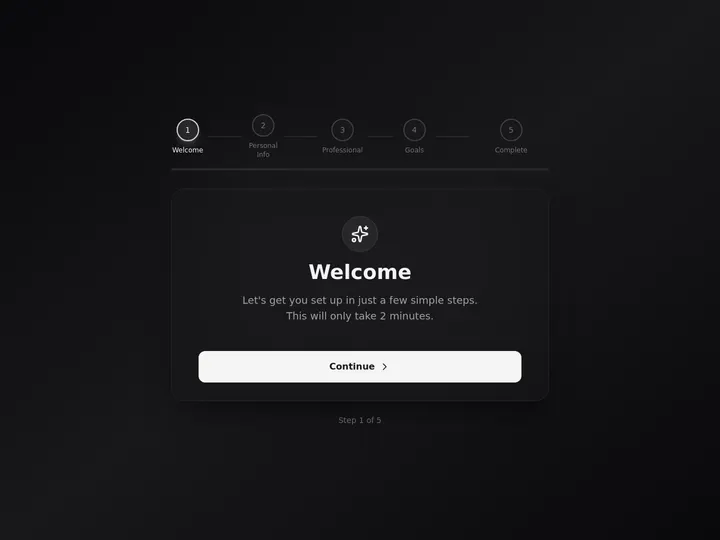
The fastest way to see the "living workflow" difference is to clone one. Each app below started as a flowchart and became a running project where every stage is a task and every handoff fires an automation. Open one, clone it, and edit it in seconds. Each of these kits holds automations, so cloning one needs a paid plan: Taskade Free can clone only a kit with no automations and at most 1 agent.
[](https://www.taskade.com/app/sales-pipeline-workflow-dry36084slddvvrh)
[](https://www.taskade.com/app/content-workflow-hvu1z1ab0fyp9dkh)
[](https://www.taskade.com/app/quick-apps-onboarding-89ridmjj8e6see10)
Ready to try it yourself? Start a free workspace at [taskade.com/create](https://www.taskade.com/create) and join the 150,000+ apps already built on Taskade. Meet the [AI agents](https://www.taskade.com/agents) that can act on your flowcharts, connect [100+ integrations](https://www.taskade.com/integrations) so branches fire real actions, browse the [Taskade App Factory](https://www.taskade.com/apps) for flowchart-powered apps real teams have built, or read [Agent Builders Explained](https://www.taskade.com/blog/agent-builders-explained) to see how a flowchart turns into an agent-driven app.
## Limitations: when Taskade is not the right fit
Taskade treats a flowchart as the start of a project, with Mind Map, Board, and Table views over the same data. When the diagram itself is the deliverable, a dedicated diagram tool fits better in four cases: strict BPMN or UML notation, freeform whiteboard workshops, Visio file exchange, and diagrams kept as code.
- **You need strict BPMN 2.0 or UML notation.** Lucidchart and diagrams.net ship standard notation stencil libraries. Taskade's Mind Map view is built for hierarchical maps, not formal notation.
- **You run live workshops on a freeform canvas.** Taskade project views are structured (Mind Map, Board, Table, and more), with no freeform whiteboard. Miro fits better for sticky-note sessions.
- **Your organization exchanges Visio files.** Taskade does not import or export `.vsdx` files. Lucidchart fits better for Visio round trips.
- **Your diagrams live as code next to source.** If diagrams are reviewed in pull requests, Mermaid files in your repo, edited with Mermaid Chart or Eraser, fit better.
**Where Taskade fits best:** a process map that has to become tasks with owners, due dates, and automations that run.
## Frequently Asked Questions
### What is the best AI flowchart maker in 2026?
Taskade Genesis is the best AI flowchart maker for teams who want a living project instead of a static image. It turns a text prompt into a flowchart in about 60 seconds, then lets you switch between multiple project views including Mind Map, Board, Calendar, and Gantt (Gantt on paid plans). Free includes 3 apps and 1 agent, and Pro is $10 a month billed annually. Whimsical AI is the fastest single-purpose tool, Mermaid Chart is the best code-first option, and Lucidchart AI is the strongest enterprise pick.
### Is there a free AI flowchart generator?
Yes. Taskade's [free AI Flowchart Generator](https://www.taskade.com/generate/ai/flowchart) makes a flowchart from text with no signup. Taskade Free starts with 0 AI credits: on Free, you earn free AI credits with referrals and invites, and you can upgrade any time. draw.io is free forever and now ships an AI Generate tool. Whimsical, Mermaid, Lucidchart, Miro, Napkin AI, and Excalidraw all have free plans with monthly, weekly, or daily AI limits, checked on 2026-11-07, with Lucidchart re-checked on 2026-11-12.
### What is the best free AI flowchart generator with no signup?
Taskade's [AI Flowchart Generator](https://www.taskade.com/generate/ai/flowchart) returns an editable flowchart in about 60 seconds with no signup, and it can become a working project with tasks and agents when you sign up. Eraser's free flowchart generator, NoteGPT, and ChartGen.ai also generate without an account, but they output a static image or diagram code. ChartGen.ai says its service ends on December 14, 2026.
### Can AI generate a flowchart from text?
Yes. AI flowchart makers parse a plain-English description of a process and output a structured diagram with nodes, arrows, and labels. Taskade Genesis, Whimsical AI, Mermaid Chart, Lucidchart AI, Eraser AI, Miro AI, draw.io, and Napkin AI all support text to flowchart. Quality depends on how specific the prompt is: name the trigger, the steps, the decisions, and the end state.
### Whimsical AI vs Lucidchart vs Taskade — which is best?
Whimsical AI wins on speed and polish for solo diagrams. Lucidchart AI wins on enterprise compliance and deep integrations with Atlassian and Salesforce. Taskade Genesis wins when the flowchart needs to become a working project with assignees, due dates, AI agents, and automation triggers. Choose Whimsical for a quick sketch, Lucidchart for a regulated enterprise, and Taskade when the diagram is step one of a larger workflow.
### What is the best AI mind map tool?
Taskade's Mind Map view is the best AI mind map tool for teams because the same prompt that generates a flowchart can be viewed as a mind map, outline, or board. Whimsical and Xmind AI are strong single-purpose alternatives. Taskade stands out because the mind map is the same underlying project as your task list, so adding a node also adds a task.
### Can AI flowcharts be edited after generation?
Yes. Every tool in this guide produces an editable diagram. You can add, remove, rename, and move nodes, change arrows, recolor branches, and export. Taskade, Whimsical, Miro, and FigJam support real-time collaborative editing. Mermaid Chart, draw.io code views, and ChatGPT or Claude output are text-first, so edits happen in source code that re-renders the diagram.
### Does Taskade support Mermaid syntax in flowcharts?
Yes. Taskade AI chat renders Mermaid diagrams in its replies, so an agent or Taskade EVE can draw a flowchart, sequence diagram, or ER diagram from your prompt. Taskade Genesis can then turn the same process into a project with tasks and automations. Every diagram on this page is rendered from Mermaid source.
### What is the best AI flowchart tool for system design?
Mermaid Chart and Eraser AI are the best AI flowchart tools for system design because they produce diagrams as code, which makes them reviewable in pull requests and diffable in Git. Lucidchart AI and draw.io are strong visual alternatives with cloud icon libraries. For engineers who want the diagram next to runnable tasks, Taskade Genesis turns the flow into a project with assignees and due dates.
### Can I export an AI flowchart to PDF or PNG?
Yes, on most tools. Whimsical, Mermaid, Lucidchart, Miro, Visme, draw.io, and Excalidraw export PNG on their free plans, and most also export SVG or PDF. Creately's Free plan does not export files. Taskade exports projects to PDF, Markdown, CSV, and OPML. draw.io has the widest range of formats.
### Are AI flowcharts good enough for production documentation?
Yes, when the tool supports version control and review. Mermaid Chart, Eraser AI, and draw.io are the best picks for production documentation because their diagrams are text or XML files you can check into Git. Lucidchart and Taskade are good picks for documentation that lives next to task tracking and team discussion. Avoid exporting a diagram once and pasting it into a wiki, because it drifts out of date within weeks.
### Can an AI flowchart run automations or AI agents?
Most AI flowchart makers cannot, because they output a static image. Taskade Genesis is the exception. Each node can become a task an AI agent works on with built-in tools, and any branch can fire an automation through 100+ bidirectional integrations. Automations run on every plan (Free includes 10 runs per billing period), premium connectors such as Slack and Google Sheets need a paid plan, and webhook triggers start on Pro.
### What is the best AI diagram maker (not just flowcharts)?
For diagrams beyond flowcharts, including sequence diagrams, ER diagrams, network and architecture, Mermaid Chart and Eraser AI lead because they produce diagrams as code. draw.io covers the widest range of notations for free, and Napkin AI is best for presentation visuals from text. Mermaid renders natively on GitHub, GitLab, Notion, and Obsidian.
### Can I connect an AI flowchart maker to Claude, Cursor, or VS Code?
Yes. Taskade exposes an MCP server on every paid plan, so Claude Desktop, Cursor, and VS Code can read your projects and generated flowcharts and act on them. draw.io publishes an official MCP server that lets Claude draw diagrams that open in the draw.io editor, and Whimsical also offers MCP access. MCP turns a flowchart from a static reference into something an AI coding assistant can query and update.
### How long does it take to generate an AI flowchart?
Most AI flowchart makers generate a diagram in 5 to 60 seconds. In our July 2026 run, Whimsical AI returned a polished flowchart in about 4 seconds, and Taskade Genesis took about 60 seconds because it builds a live project, not just a picture. Complex prompts with deep branching take longer and need a human review pass.
## When an AI Flowchart Maker Is Not Enough (And What to Use Instead)
AI flowchart makers are excellent at first drafts and weakest at complex, conditional logic. Be honest about the limits before you ship a diagram. Across the tools in our July 2026 run, three failure modes recur:
- **Deep branching degrades accuracy.** AI is reliable on linear and moderately branched flows, but nested conditionals (more than three or four decision points) start to produce wrong or missing branches. The 2026 standard is human-in-the-loop review — verify the logic before it becomes documentation.
- **Edge cases get hallucinated.** Ask for an exhaustive error-handling flow and the AI will invent plausible-but-wrong states. Treat AI output as a draft to correct, not a source of truth.
- **Static drift.** Any exported PNG or SVG is out of date the moment your process changes. A diagram pasted into a wiki will be wrong within weeks.
The first two limits apply to every tool here: the fix is the same review pass you would give a junior teammate's first draft. The third limit is structural, and it is the one Taskade solves differently: when the flowchart is a [living project](https://www.taskade.com/ai/apps) instead of an image, changing the process changes the diagram, and the workflow keeps running. McKinsey's November 2025 survey showing 62% of organizations experimenting with or scaling AI agents reflects exactly this shift: teams want flows that execute, not just flows that illustrate.
```mermaid
graph TD
A["AI generates a flowchart"] --> B{"Complex branching
or edge cases?"}
B -->|Yes| C["Human review pass
(verify logic)"]
B -->|No| D["Usable first draft"]
C --> D
D --> E{"Does the flow
need to RUN?"}
E -->|No| F["Export — any static tool works"]
E -->|Yes| G["Living workflow
(Taskade Genesis)"]
style A fill:#0d1b2a,color:#7dd3fc,stroke:#38bdf8,stroke-width:1.5px
style B fill:#1a140a,color:#ffb74d,stroke:#e65100,stroke-width:1.5px
style C fill:#1a0d0d,color:#ef9a9a,stroke:#b71c1c,stroke-width:1.5px
style D fill:#0d1a0e,color:#86efac,stroke:#22c55e,stroke-width:1.5px
style E fill:#1a140a,color:#ffb74d,stroke:#e65100,stroke-width:1.5px
style F fill:#1e1e2e,color:#94a3b8,stroke:#475569
style G fill:#2a1225,color:#ff8fa3,stroke:#ff2d60,stroke-width:2px
```
## Verdict: Which AI Flowchart Maker Should You Use?
If you only remember one thing from this guide, remember this: **most flowcharts don't need to be flowcharts at all — they need to be projects**. A static diagram is step one. The real work is assigning the nodes to people, tracking when they're done, and connecting them to the rest of your workflow. That's why we rank Taskade Genesis first. It's the only tool on this list where the flowchart is the start of a living project instead of the end of a task.
If you're buying a single-purpose tool, Whimsical AI is the fastest polished pick, Mermaid Chart is the best for engineers who want diagrams-as-code, and Lucidchart AI is the safest enterprise choice. If budget is the deciding factor, draw.io (Diagrams.net) is free forever, now generates diagrams with AI, and covers most everyday flowcharts.
**Try it free right now:** [Generate your first AI flowchart](https://www.taskade.com/generate/ai/flowchart) on Taskade — no signup, 60 seconds to first diagram. Or start a full workspace at [taskade.com/create](https://www.taskade.com/create) to build the flowchart, the tasks, the agents, and the automations in one place.
▲ ■ ● Memory feeds Intelligence, Intelligence drives Execution, and Execution feeds Memory back — the loop that turns a flowchart into a workflow that runs.